


Contact
This e-mail address is being protected from spambots. You need JavaScript enabled to view it
. We are happy to help.
General
What does Deskera CRM offer?
Deskera CRM primarily revolves around Sales, Marketing and Customer Support functions of the organization. The application provides users with easy-to-use functionality across all these functions through its comprehensive modules. The application provides Lead management, Account Management, Contact Management, Opportunity Management, Campaign Management, Case Management and Activity Management capabilities. Other than these, the Document Management facilitates centralized document storage for quick and permission based access to all documents related to the leads, accounts, contacts, opportunities and more. Reports can be generated based on the organization’s KPIs for quick analysis of the organization’s processes.
What is unique about Deskera CRM?
Deskera CRM allows you to easily manage all your sales, marketing and customer support information. Adding, updating and navigating through all your details is as easy as using a spreadsheet. It ensures that all your tasks get completed in three clicks or less. It incorporates 'Click and Type' functionality that allows you to select, edit and manipulate any data as per your requirement, without the need of navigating through any additional tabs or menus. With 'Save as you type' functionality, you are assured that all your data is recorded as soon as it is entered in the system. Learn more about Click and Type
CRM Dashboard
What is Mashboard?
Deskera CRM brings to you the next generation of Dashboards – called ‘Mashboards’- which provide new, and hybrid dashboard design techniques, incorporating all the features of the previous generation dashboards in a real time customizable format. They allow “mashing” or drag-and-drop of content and adding useful applications known as ‘widgets’.
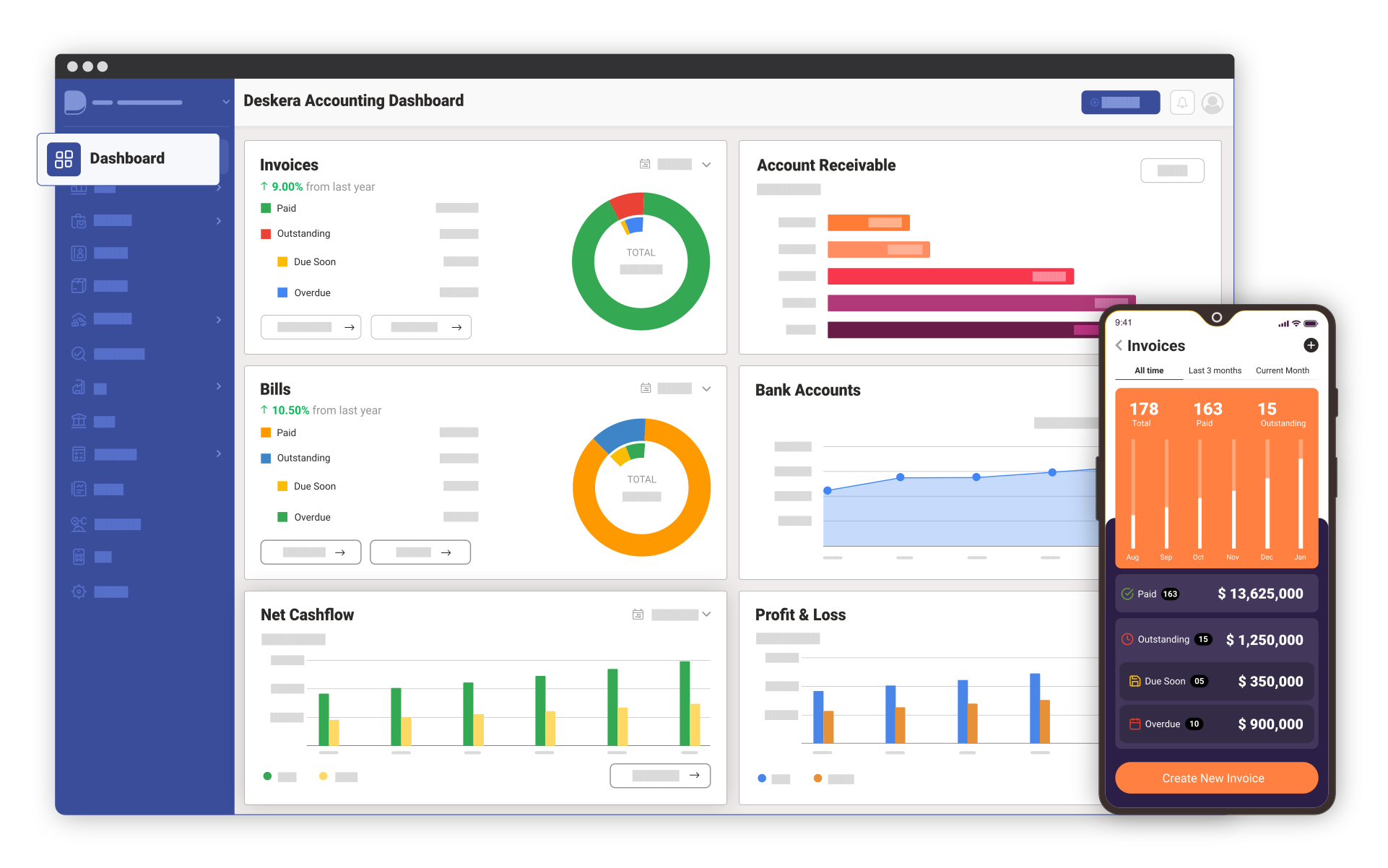
The CRM Mashboard is a visually intuitive homepage for your Deskera CRM application where you can find the most important information regarding your sales, marketing and customer support functions. Data from the system is presented in the form of intuitive graphs and charts to ease decision making by the executives.
Can I search on all the entries in Deskera CRM?
Yes, you can easily search through all the lists and entries saved in Deskera such as campaigns, contacts, accounts, users, documents and more through Deskera One Search functionality present at the top right hand corner of Deskera CRM. Just type the term you intend to search in the Search Box and get results instantly without even hitting the enter button through 'Search-as-you-type' functionality.
What is 'Quick Add'. How can I use it?
You can easily add an account, lead, opportunity, contact, case, target or activity from the CRM dashboard using ‘Quick Add’. For that, you need to simply click on the '+' icon in the corresponding widget (such as campaign widget for adding a new campaign) to view its simplified form, add relevant information, and submit details for adding information quickly.
What is 'Quick View'. How can I use it?
It provides you with an instant ‘tree view’ of all accounts, leads, products, campaigns and documents. You can easily navigate through this list just as you explore folders in your Operating System. Click on the '+' icon to expand the list and '-' icon to collapse it. Click on an ‘entry’ to view details in the adjacent window.
How can I customize CRM Dashboard?
The components in the Deskera Dashboard can be moved around and rearranged as per your requirement. This ensures a priority-based unique interface to the dashboard components, for each user of your organization. The users can individually decide the layout of the portal, and add and remove components as per their requirements.
What are Dashboard Widgets? How can I add/remove them from CRM Dashboard?
Widgets are small applications that perform a specific task such as adding campaigns, viewing lead updates, tracking case reports, accessing CRM Module links and more. Add Widgets to your CRM dashboard from the 'Widget Bar', present at the bottom of the screen, to access the most important applications directly from it. So, in Deskera CRM you will find widgets to manage your campaigns, leads, contacts and more. Widgets also allow users to lend a more personal touch to their dashboard by allowing them to choose the applications they wish to see. You can remove a widget from the dashboard by simply closing it from 'x' icon. The widget can be easily re-added from the Widget Bar whenever required.
How can I access CRM Modules?
Access all links to manage campaigns, leads, contacts, products, accounts, opportunities, cases, activities and target lists through the 'My Links' Widget. You will also find separate widgets for these CRM Modules where you can view details for an individual 'CRM Module' by simply clicking on the 'View Details' icon.
CRM Modules
What is 'Save as you type'?
Deskera CRM offers you a unique functionality to 'save as you type' which allows you to quickly create leads, contacts, leads, opportunities, cases and more in a spreadsheet-type interface. The entered information is saved as soon as you type it.
How does activities module work?
Deskera CRM allows you to effectively track sales activities and tasks and create activity reports. The activities can be mapped to CRM modules such as Leads, Contacts, Accounts, Opportunities and Cases to allow you to keep track of all tasks and events associated with these modules through regular updates. It allows you to easily maintain activity schedule as well as priority status.
How can I change the date format?
Deskera CRM allows you to change the date format for any column in CRM Modules by simply right clicking on a cell containing date and choosing a format from a comprehensive list of the date formats displayed.
How can I use Advanced Search for better results?
Advanced Search allows you to search for multiple terms in multiple fields. For this, you can add a term to search through the 'Add' button. Similarly, you can add multiple terms and click on 'Search' to get filtered results on multiple parameters.
How can I configure templates for exporting in PDF format?
Export CRM details such as Campaign List, Lead List, Contact List and more in PDF format for easily viewing, sending or printing these details. Deskera CRM allows you to customize the export format by defining Export templates. You can create a new template easily by clicking on 'Create New' in the window displayed on clicking "Export to PDF format'. You can easily configure the title, header and footer notes, date, paging, page border, page layout, company logo, Background color, text color and more to create a new template. These templates can be saved in Deskera CRM which allows you to quickly export by selecting a pre-defined template and clicking 'Export'. You can also choose the columns you want to export by clicking on 'Select Columns', selecting the required columns, configuring their width and clicking 'Export' to download PDF file in the required format.
Can I choose columns to export in CSV format?
Export CRM details such as Campaign List, Lead List, Contact List and more in CSV format for viewing, editing in spreadsheet format. You can easily choose the columns you want to export by clicking on 'Export to CSV file', selecting the required columns and clicking 'Export' to download CSV file in the required format.
Can I delete more than one entries at once?
Yes, Deskera CRM allows you to delete multiple entries at once. You can easily select the rows you want to delete and click on 'Delete' button in the top panel to remove the rows from your Campaign List, Lead List, Contact List or more.
What is 'Quick Search'?
'Quick Search' allows you to get search results as soon-as-you-type without even hitting the enter button. This functionality provides faster search results from the very first letter you type and is incorporated in all CRM Modules such as campaigns, leads, contacts, accounts, documents and more.
How can I add files to a campaign, lead, account, opportunity, contact, product or case?
Deskera CRM allows you to easily add files in any format to any campaign, lead, account, opportunity, contact, product or case. For adding a document, select an entry such as campaign, lead or more, click to expand 'Other Details' window at the bottom, click on 'Add files', browse for the location of the document and click 'Upload' to attach the document. This document can be later viewed or downloaded by selecting the entry and expanding the 'Other Details' window.
How can I add comments to a campaign, lead, account, opportunity, contact, product or case?
Deskera CRM allows you to easily add comments to any campaign, lead, account, opportunity, contact, product or case. For adding a comment, select an entry such as campaign, lead or more, click on 'Other Details' window at the bottom, click on 'Add Comment', fill in the details and click 'Add Comments' to save the information. These comments can be later viewed by expanding the 'Other Details' window.
How can I track 'Recent Activity' for a campaign, lead, account, opportunity, contact, product or case?
You can easily track the 'Recent History' related to a campaign, account, lead and more by simply selecting a row, expanding the 'Other Details' window at the bottom, and clicking on 'Recent Activity' to view activity details associated with the selected campaign, lead, contact or more.
Campaign Management
How are Campaigns captured in Deskera CRM?
Maintain comprehensive details of marketing initiatives such as advertisements, direct mails, or conferences that you conduct in order to generate prospects and build brand awareness as Campaign details which can be easily added in the system using an intuitive spreadsheet type interface.
How do I add E-mail Marketing to a Campaign?
To add Email Marketing to a campaign, follow these steps: • Create a new campaign by simply clicking on a new row in campaign tab and adding campaign details. Choose the campaign type as 'Email Marketing'. • Select the campaign and click on 'Email Marketing' Button. • Click on 'Add Email Marketing' and fill in the required details. Choose a pre-defined email template and add target list(s). Click on Submit to save the details. • Click on 'Send Mail' to send the selected email template to your target lists. • Click on 'View Status' to monitor the effectiveness of your email campaigns in terms of actual number of emails sent, customer views and email subscribers.
How do I create an Email template for Email Marketing?
You can create a new Email template easily through the following steps: • Select a campaign with 'Campaign Type' as 'Email Marketing'. • Click on 'Email Marketing' Button to open a new window. • Click on 'Email Template' and then 'New Template' to create a new template. • Define email templates with rich text formatting. You can also embed pictures, videos and even MS Word documents without the worry of losing your formatting. You can add parameter configuration to customize the email campaign according to a lead, contact, user or target details.
How do I create Target Lists?
You can create a Target List easily through the following steps: • Select a campaign and click on the 'Target List' button in the top panel. • Click on 'Create New Target List'. • Add a name and description to the target list. Import targets from Lead List, Contact List, User List or Target List by clicking on 'Import' button and selecting the entries for importing. • Click 'Save' to record the Target List.
How can I manage inactive campaigns?
You can send inactive campaigns to Archive Repository by selecting a campaign and clicking on 'Add to Archive'. View list of archived campaigns through 'View Archived Campaigns'. These campaigns can be easily searched and unarchived/deleted at any point of time.
How can I configure the columns to be viewed in Campaign List?
You can easily configure the columns to be viewed in Campaign List by clicking on the downward arrow in a column header, viewing column list and selecting/de-selecting columns to be viewed/hidden according to your preference.
Lead Management
How are leads created in Deskera CRM?
Capture all relevant information on potential sales opportunities or prospects i.e. individuals who have expressed some interest in your product or company through lead details which can be easily added in the system using an intuitive spreadsheet type interface. Users can also mass import lead information from external sources in CSV format.
What is the process of converting a lead?
The application allows conversion of leads into accounts or opportunities. These can also be added to the contact list. Conversion can be undertaken only for a prequalified lead. Users can untick opportunity if they do not want to create an opportunity for the account. The status of the lead changes to ‘qualified’ after it has been converted to an opportunity. Lead converted to an account is removed from the lead home page.
How can I add an activity to a lead?
You can easily add an activity to a lead by selecting the lead, clicking on 'Activity' button in the top panel, adding activity details including activity schedule and priority status.
How can I import leads in Deskera CRM?
Leads can be easily imported in Deskera CRM using a CSV file. Deskera CRM allows you to map headers in CSV file with the headers in your Deskera CRM Lead List by simply dragging and dropping column headers. It detects the leads having similar details with your existing list. It allows you to resolve conflict of duplicate leads by replacing existing details with the imported leads or mapping imported leads with your existing leads allowing you to save new lead details to any of your existing leads or even rejecting the imported leads having conflict to retain your original leads and only import leads without any conflict with the existing leads.
How can I manage inactive leads?
You can send inactive leads to Archive Repository by selecting a lead and clicking on 'Add to Archive'. View list of archived leads through 'View Archived Leads'. These leads can be easily searched and unarchived/deleted at any point of time.
How can I configure the columns to be viewed in Lead List?
You can easily configure the columns to be viewed in a Lead List by clicking on the downward arrow in a column header, viewing Lead List and selecting/de-selecting columns to be viewed/hidden according to your preference.
Contact Management
How are Contacts captured in Deskera CRM?
Maintain complete information about individuals you know and interact with through Contact details which can be easily added in the system using an intuitive spreadsheet type interface. Users can mass import contact information from external sources in CSV format.
How can I import contacts in Deskera CRM?
Contacts can be easily imported in Deskera CRM using a CSV file. Deskera CRM allows you to map headers in CSV file with the headers in your Deskera CRM Contact List by simply dragging and dropping column headers. It detects the contacts having similar details with your existing list. It allows you to resolve conflict of duplicate contacts by replacing existing details with the imported contacts or mapping imported contacts with your existing contacts allowing you to save new contact details to any of your existing contacts or even rejecting the imported contacts having conflict to retain your original contacts and only import contacts without any conflict with the existing contacts.
How can I manage inactive contacts?
You can send inactive contacts to Archive Repository by selecting a contact and clicking on 'Add to Archive'. View list of archived contacts through 'View Archived Contacts'. These contacts can be easily searched and unarchived/deleted at any point of time.
How can I configure the columns to be viewed in Contact List?
You can easily configure the columns to be viewed in a Contact List by clicking on the downward arrow in a column header, viewing Column List and selecting/de-selecting columns to be viewed/hidden according to your preference.
Account Management
How are Accounts captured in Deskera CRM?
Maintain comprehensive details of individuals (B2C scenario) and companies (B2B scenario) with whom the organization has undergone a business transaction through account details which can be easily added in the system using an intuitive spreadsheet type interface. It can be used to extract opportunities of cross sell, up sell as well as switch sell in future.
Can the accounts be linked with a parent account?
Parent- Child relationship can be established between various accounts within the application. A new account will show the parent account details as ‘none’. Subsequent opportunities can be mapped with the parent or child account.
How can I import accounts in Deskera CRM?
Accounts can be easily imported in Deskera CRM using a CSV file. Deskera CRM allows you to map headers in CSV file with the headers in your Deskera CRM Account List by simply dragging and dropping column headers. It detects the accounts having similar details with your existing list. It allows you to resolve conflict of duplicate accounts by replacing existing details with the imported accounts or mapping imported accounts with your existing accounts allowing you to save new account details to any of your existing accounts or even rejecting the imported accounts having conflict to retain your original accounts and only import accounts without any conflict with the existing accounts.
How can I manage inactive accounts?
You can send inactive accounts to Archive Repository by selecting an account and clicking on 'Add to Archive'. View list of archived accounts through 'View Archived Accounts'. These accounts can be easily searched and unarchived/deleted at any point of time.
How can I configure the columns to be viewed in Account List?
You can easily configure the columns to be viewed in an Account List by clicking on the downward arrow in a column header, viewing Account List and selecting/de-selecting columns to be viewed/hidden according to your preference.
Opportunity Management
How are Opportunities captured in Deskera CRM?
Maintain complete information related to specific sales and pending deals or the most promising leads that need to be cracked as Opportunity details which can be easily added in the system using an intuitive spreadsheet type interface. Furthermore, you can record all related contacts and activities information for each opportunity.
Can I create opportunities without a relation with Accounts?
Opportunity is the potential realized in an existing customer for a new business transaction or related buying. Hence, all opportunities must be linked with an account. This holds true when a new opportunity is created as well as when a lead is converted.
How can I manage inactive opportunities?
You can send inactive opportunities to Archive Repository by selecting an opportunity and clicking on 'Add to Archive'. View list of archived opportunities through 'View Archived Opportunities'. These opportunities can be easily searched and unarchived/deleted at any point of time.
How can I configure the columns to be viewed in Opportunity List?
You can easily configure the columns to be viewed in an Opportunity List by clicking on the downward arrow in a column header, viewing Opportunity List and selecting/de-selecting columns to be viewed/hidden according to your preference.
Case Management
How are Cases captured in Deskera CRM?
Capture detailed description of a customer's feedback, problems or questions as Case details which can be easily added in the system using an intuitive spreadsheet type interface. Effectively manage cases by tracking customer queries through regular updates and associated activity details.
How can I manage inactive cases?
You can send inactive opportunities to Archive Repository by selecting a case and clicking on 'Add to Archive'. View list of archived cases through 'View Archived Cases'. These cases can be easily searched and unarchived/deleted at any point of time.
How can I configure the columns to be viewed in Case List?
You can easily configure the columns to be viewed in a Case List by clicking on the downward arrow in a column header, viewing Case List and selecting/de-selecting columns to be viewed/hidden according to your preference.
Deskera Email
How do I set up my E-mail account?
You can set up your email account easily in Deskera. Just follow these steps to get started: • Enter Account Name : Enter a name for your e-mail account. This name is displayed in your Personal Email List. Use a unique name to distinguish it from other E-mail accounts such as 'My Gmail Account'. • Enter From Name : Enter a name you wish to display as sender's name in all your outgoing e-mails such as 'John from DIA'. • Enter User Name : Enter the Username you use to login your favorite e-mail account along with the domain name such as
This e-mail address is being protected from spambots. You need JavaScript enabled to view it
for your Gmail account. • Enter Password : Provide the password you use to enter your e-mail account. Your personal settings are secure with Deskera. • Enter Mail Server Address : Provide the incoming mail server address such as imap.gmail.com for your Gmail account. If you are unsure about this information, please check your email server provider settings for configuring an email client. Here are links to some popular e-mail provider settings: Find Gmail Settings here,Find Yahoo Mail Settings here,Find Hotmail Settings here. • Enter Mail Server Protocol : Choose the protocol IMAP/POP3 provided by your e-mail service provider for setting up an e-mail client such as IMAP for setting up your Gmail account. • Map folders for your IMAP account : Click on Select to view the folders available in your IMAP account. Choose one of them to sync it with your Trash folder and Sent folder.
• Enter Mail Server Port: Provide incoming mail server port setting for all your incoming e-mails such as 993 for your Gmail account.
User Administration
How can I define User Roles?
Assign roles such as Company Administrator, Sales Manager or Sales Executive to the users of the system for easily configuring access settings based on their designation and work function. You can configure these settings through User Administration link by selecting a user and clicking on 'Assign Roles', selecting the desired role and clicking 'Apply' to save these settings.
How can I define User Permissions?
Easily assign user permissions to view, manage, delete, archive, import/export CRM Modules such as campaigns, leads, contacts, opportunities, targets, accounts and cases, as well as CRM Reports. You can easily configure these settings through 'User Administration' link by selecting a user and clicking on 'Assign Permissions', expanding a CRM Module, selecting the desired settings and clicking 'Apply' to save these settings.
How can I configure Organizational Hierarchy?
You can easily configure Organizational Hierarchy by clicking on the 'My Organization' link. You can view the organization chart to clearly identify user hierarchy levels in the organization. Assign users by simply dragging and dropping on the parent user to change the organization chart according to your requirements. It allows you to automatically configure access levels for different groups of users according to their position in the organization chart.
How can I monitor the user activities in Deskera CRM?
You can easily monitor user activities in the system using the 'Audit Trail' functionality which provides an Audit Log of parameters such as activity, user IP, username, timestamp of all user activities in CRM application. You can use filters related to CRM Modules to easily search activities related to accounts, campaigns, leads and more. Search-as-you-type functionality allows you to quickly search through Audit Trail records.
More
Is there any help available in Deskera CRM?
Deskera CRM offers complete assistance wherever you require through the following Help features: • Getting Started Tips: If you are new to Deskera, get a useful and quick tour of all major features through the Getting Started Tips. The tour will get you started with Deskera within minutes of logging in. Look out for the icon on the top right corner of your screen for viewing these tips. • Contextual Help: Whenever you need any help regarding any link/button, Deskera provides you with a unique feature, wherein you just need to bring the mouse pointer over it and view its details.
• Browse through our "Frequently Asked Questions" to find immediate answers to most of your queries. •
This e-mail address is being protected from spambots. You need JavaScript enabled to view it
We are here to help you! • Discuss on Deskera Forum. Find useful tips and tricks on Deskera Blog.
How can I use Deskera CRM Reports?
Deskera CRM Reports offers powerful Customer Intelligence that empowers you to analyze information regarding customer details and activities through a comprehensive list of standard reports such as Lead by Status, Cases by Status, Key Contacts and more. • Filter your reports on parameters such as dates. Use quick search to filter for specific key terms. • Export reports in convenient formats. You can easily customize the export format by defining templates. • View reports through intuitive graphs which renders a quick overview for the selected report.